Quick Answer
Yes, you can pay PhilHealth online. Log in to the PhilHealth Member Portal, generate your Statement of Premium Account (SPA), then settle the amount through GCash, Maya, an accredited bank, or a credit or debit card. You never have to visit a PhilHealth branch or a payment center to keep your contributions current, as long as your PIN and personal details are accurate.
This applies whether you are a voluntary member, a self-employed individual, a freelancer, an OFW, or an employer remitting for your staff. The steps differ slightly depending on your membership type, and getting one detail wrong like an outdated SPA or a mismatched PIN is usually the reason payments fail to post. This article walks through the entire process, the requirements, the common mistakes, and what to do if something goes wrong.
What Does It Mean to Pay PhilHealth Online?
Paying PhilHealth online means settling your monthly or quarterly health insurance contribution through a digital channel instead of lining up at a PhilHealth Local Health Insurance Office (LHIO) or an over-the-counter payment center. PhilHealth, formally the Philippine Health Insurance Corporation, runs the country’s national health insurance program, and every contributing member needs an active, up-to-date payment record to use their benefits when hospitalized or availing of covered services.
Employed members usually don’t think about this much, since contributions get deducted from payroll and remitted by the company. Voluntary members, self-employed individuals, freelancers, and OFWs don’t have that convenience. They are responsible for paying their own contributions, and for years that meant physically showing up somewhere with cash. Digital payment channels removed that requirement, and PhilHealth itself now directs members to pay online rather than in person for most transactions.
Before You Start: What You Need to Pay PhilHealth Online
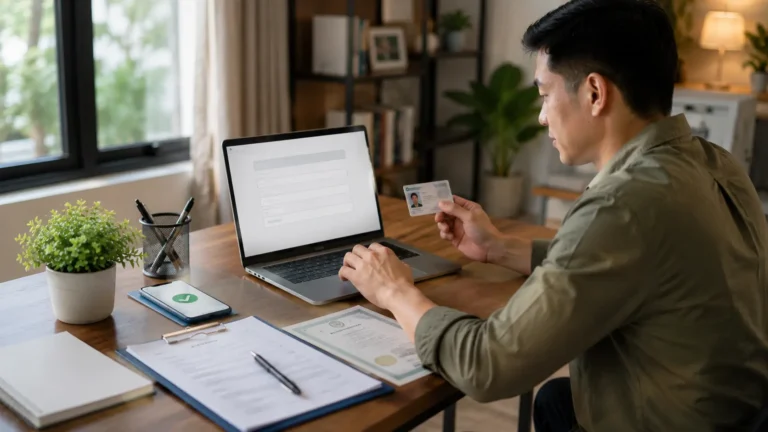
.An active PhilHealth Portal Login account registered with your PIN, email address, and mobile number. Getting these ready beforehand saves you from restarting the process halfway through.
Your PhilHealth
Identification
Number (PIN)
The 12-digit number tied to your membership record.
An active Member
Portal account
registered with your PIN,
email address,
and mobile number.
Updated personal information
name, birthdate, and membership category as they appear in PhilHealth’s records. A mismatch here is one of the most common reasons payments fail to post correctly.
The correct contribution period
Name, birthdate, and membership category as they appear in PhilHealth’s records. A mismatch here is one of the most common reasons payments fail to post correctly.
The correct contribution period
The specific month,
quarter,
or months you
intend to pay for.
Your contribution amount
Based on the current
PhilHealth rate table, calculated automatically once you
enter your monthly income.
A funded payment method
GCash, Maya, a bank account
with online banking, or a credit or debit card.
A stable internet connection
payment sessions can time out, and an interrupted transaction is harder to trace than a slow one.
If you don’t have a Member Portal account yet, registration takes just a few minutes: go to the PhilHealth website, choose the online registration option, enter your PIN and personal details, set a password, then verify through the link sent to your email.
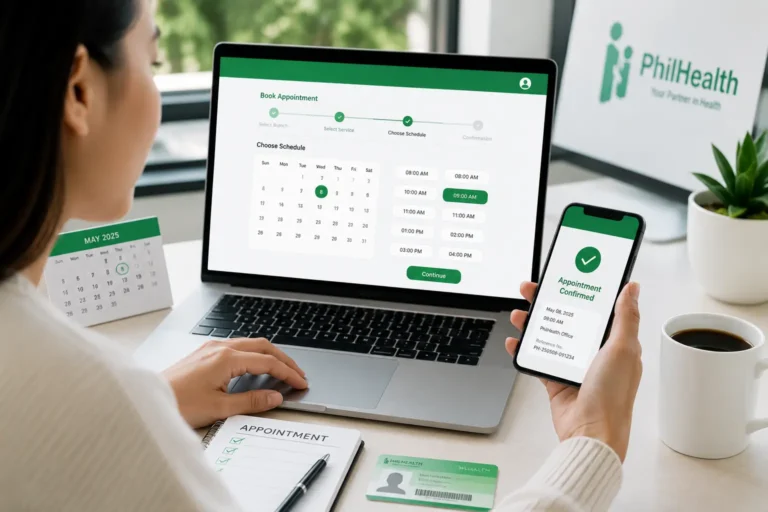
If you don’t have access to the PhilHealth Portal yet, registration only takes a few minutes. Once your account is active, you can generate your SPA, check contributions, and pay online.
The Most Critical Step: Generating Your Statement of Premium Account (SPA)
Before you can pay anything, PhilHealth needs a record of exactly what you owe and for which period.
Statement of Premium Account
commonly called SPA. Older articles and search results sometimes call this a PRN, or Payment Reference Number that was the term used under the previous system. The document now used is the SPA, generated inside the Member Portal.
Why this step matters so much
if you skip it or generate it with the wrong details, your payment can go through on the payment app’s end but never get matched to your PhilHealth account. That’s the single most common complaint from members who paid but couldn’t see it reflected later.
How to Generate Your SPA
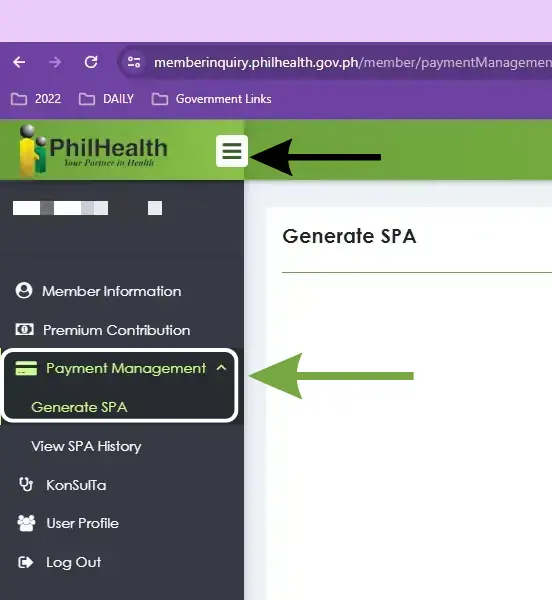
Log in to the PhilHealth Member Portal using your registered email and password.
Go to the option for generating a Statement of Premium Account.
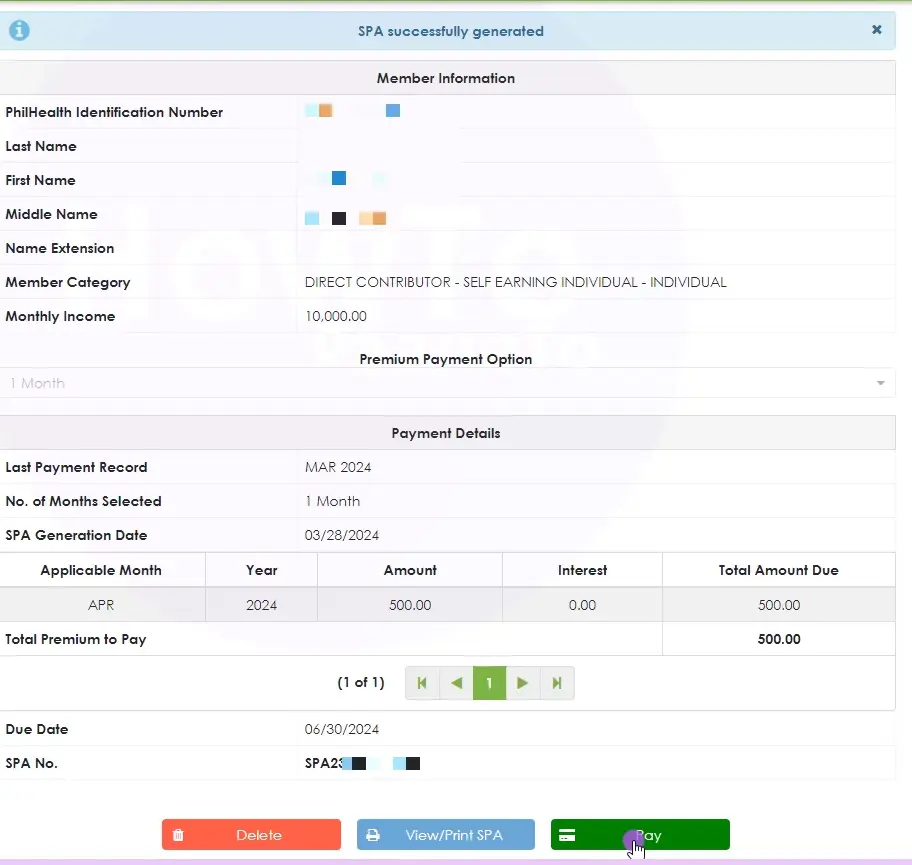
Choose the applicable contribution period, meaning the month or months you’re paying for.
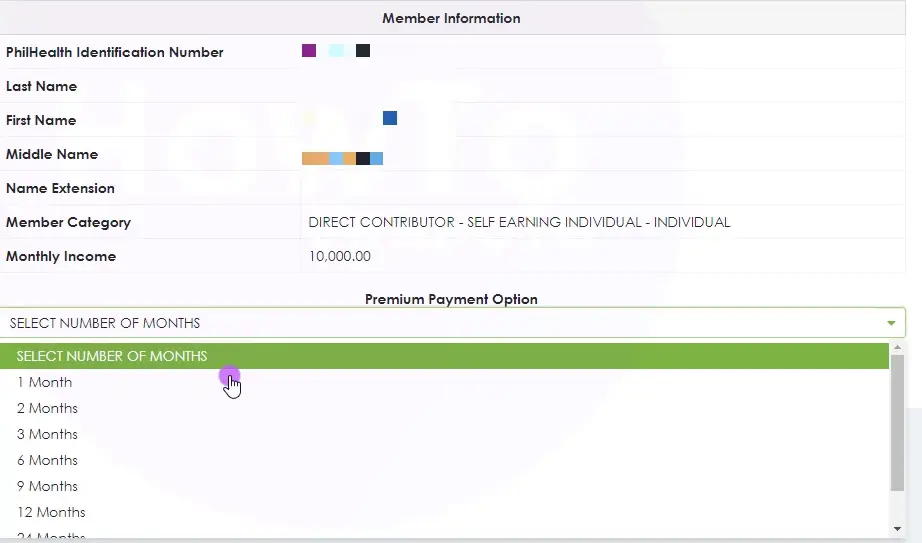
Confirm your declared monthly income, since this determines your contribution amount under the current rate table.
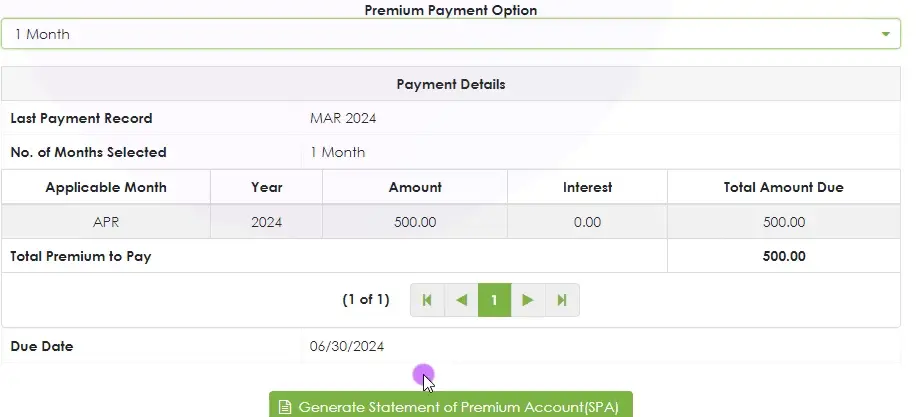
Review the computed
amount, then
generate and save your SPA.
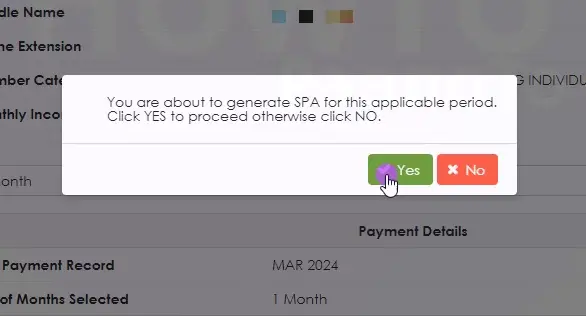
Double-check every field before confirming. If your declared income, membership category, or contribution period is wrong, you’ll either underpay, overpay, or generate a payment that PhilHealth can’t properly credit to the right month.
Step-by-Step Guide: How to Pay PhilHealth Online
Once your SPA is generated, the actual payment takes just a few minutes.
Log in to the Member Portal and locate your generated SPA.
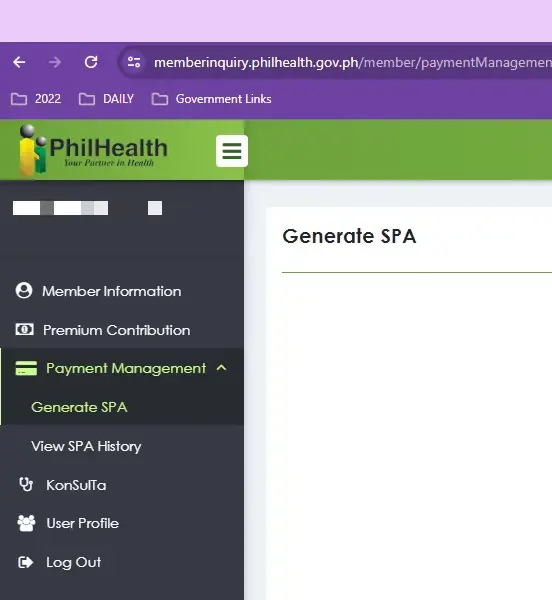
Click “Pay Online” or the equivalent option shown against your SPA.
Select your payment channel e-wallet, bank, or card.
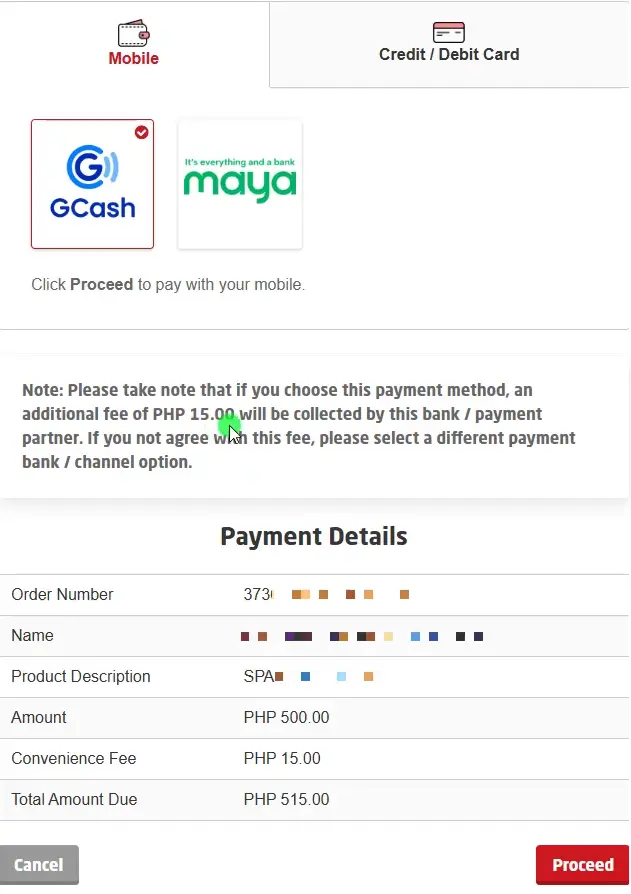
Confirm the exact amount shown matches your SPA before authorizing the transaction.
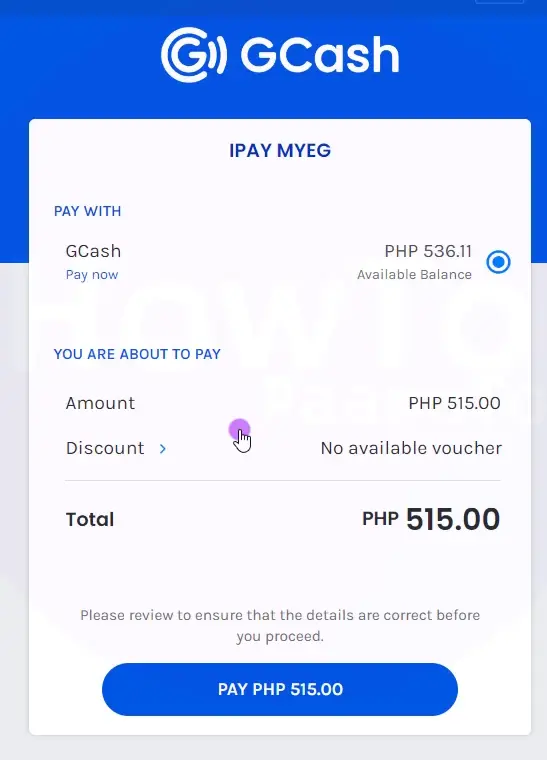
Complete the payment and wait for the confirmation screen — don’t close the browser tab or app while it’s processing.
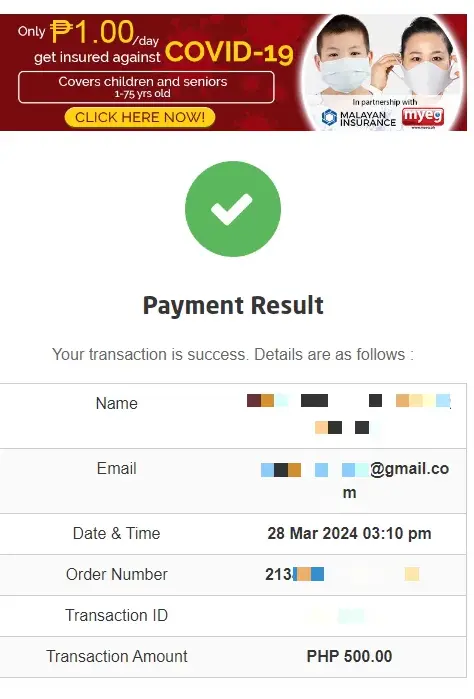
Save your receipt or reference number, either as a screenshot or downloaded PDF, for your own records.
The entire transaction, from login to confirmation, typically takes under ten minutes if your details are already accurate.
How to Pay PhilHealth Online Using GCash
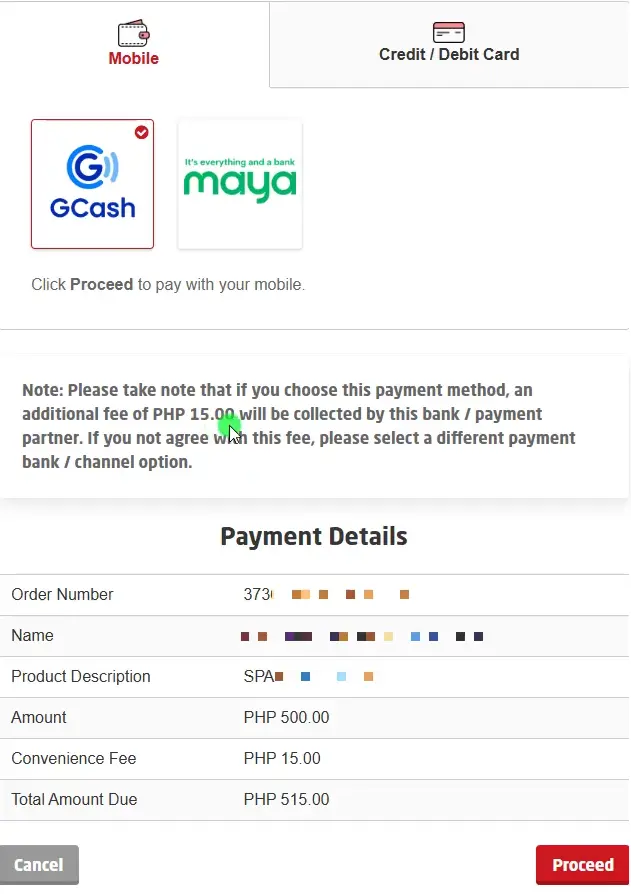
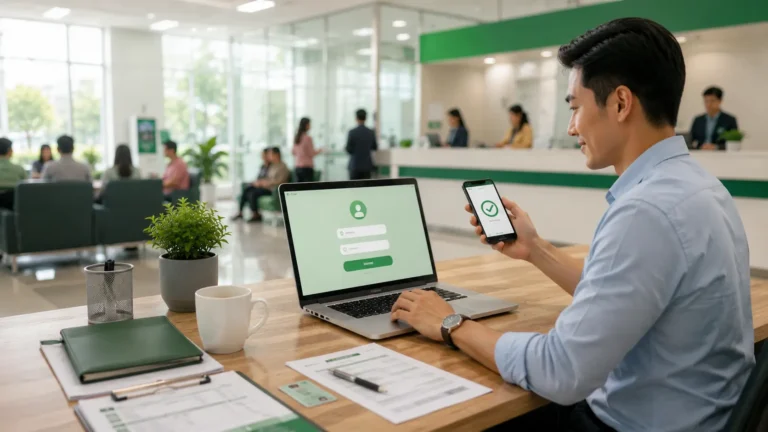
GCash is the most commonly used channel among voluntary members, self-employed workers, and freelancers, mainly because almost everyone already has the app installed.
Payments through GCash generally reflect quickly, often within the same day, though PhilHealth still advises checking your Member Portal a day or two later to confirm posting.
Paying PhilHealth Online Through Maya
Maya works almost the same way as GCash. Open the app, go to the bills payment or government services section, select PhilHealth, enter your PIN and SPA details, then confirm the amount and authorize the payment. Keep the digital receipt Maya generates it serves as your proof of payment if a dispute comes up later.
Paying PhilHealth Online Through Banks (BDO, BPI, Metrobank, and Others)
Several Filipino members prefer paying through their bank, especially those who already do most of their transactions through online banking rather than e-wallets. PhilHealth works with a number of accredited banks, including BDO, BPI, Metrobank, Landbank, Security Bank, Union Bank, RCBC, and UCPB, among others. Availability and the exact steps can vary by bank, so it helps to check your bank’s own bills payment menu for a listed PhilHealth option before assuming it’s supported.
General steps for bank payment:
One thing worth knowing: bank transfers can take a day or two to settle and reflect in PhilHealth’s system, unlike e-wallet payments, which tend to post faster. If you’re paying close to a deadlin

Paying PhilHealth Online Using a Credit or Debit Card
Card payment is available directly through the Member Portal’s “Pay Online” option, and it’s often the most practical route for OFWs who don’t hold an active Philippine bank account or GCash wallet.
If you’re using a foreign-issued card, be aware that your bank may apply a foreign transaction fee, sometimes adding a few percent to the total charge. This is standard for cross-border card transactions and isn’t something PhilHealth controls.
How to Pay PhilHealth Online for OFWs
Overseas Filipino Workers face a slightly different situation, since they’re paying from outside the country and often don’t have a local PhilHealth-accredited bank account. The practical path for most OFWs is:
Since OFWs can’t easily walk into an LHIO to resolve a posting issue, it’s worth double-checking every entered detail before submitting payment, and keeping digital copies of every receipt in a dedicated fold
How to Pay PhilHealth Online for Self-Employed and Voluntary Members
Self-employed individuals and voluntary members follow essentially the same process. Log in to the Member Portal, generate your SPA based on your declared monthly income, then pay through GCash, Maya, an accredited bank, or a card. The main difference from employed members is that nobody else is handling this for you missing a due date means the responsibility, and any resulting penalty or coverage gap, falls entirely on you.
Because income can fluctuate for freelancers and self-employed workers, it’s worth reviewing your declared monthly income periodically. Contribution rates are based on that declared amount, subject to a minimum and maximum threshold under the current schedule, so an outdated income figure can lead to underpayment and a shortfall in your contribution record.
How Employers Pay PhilHealth Contributions Online
Before using the Electronic Premium Remittance System (EPRS), businesses must complete PhilHealth Employer Registration to receive their employer credentials.
Employers don’t use the Member Portal for remittance. Instead, they use the Electronic Premium Remittance System (EPRS), a separate platform built specifically for businesses to file and pay contributions for all their employees in one transaction.
Employers who remit late face surcharges and penalties on top of the unpaid contributions, so setting a recurring monthly schedule for EPRS payments is a practical way to avoid falling behind.
PhilHealth Contribution Rates: How Much Should You Pay? Online
PhilHealth computes contributions as a percentage of monthly income, subject to a set minimum and maximum contribution ceiling. The Member Portal calculates this automatically once you enter your declared income while generating your SPA, so you generally don’t need to compute it by hand. Rates are adjusted periodically under national health insurance regulations, so relying on an old rate table from a previous year can lead to underpayment.
|
Membership Type |
Contribution Basis |
Where to Check Current Rate |
|---|---|---|
|
Employed |
Percentage of monthly basic salary, shared between employer and employee |
Payroll department or PhilHealth rate table |
|
Self-employed / Voluntary |
Percentage of declared monthly income, within minimum-maximum bounds |
Member Portal, auto-computed |
|
OFW |
Percentage of declared income, fixed annual or quarterly option |
Member Portal, auto-computed |
|
Employer remittance |
Combined employee share plus employer counterpart |
EPRS system, auto-computed |
Since exact figures change from year to year, always confirm the current rate inside the portal at the time you generate your SPA rather than relying on a number you remember from a previous payment cycle.
How Long Does Posting Take After You Pay PhilHealth Online?
Most e-wallet payments, like those through GCash or Maya, reflect in the Member Portal within 24 hours, though PhilHealth generally advises allowing three to five banking days before treating a payment as delayed. Bank transfers tend to take slightly longer, often a full one to two banking days, because they pass through an additional clearing step between the bank and PhilHealth’s collection system.
Card payments made directly through the Member Portal usually generate an instant receipt, but the underlying record can still take a day or two to fully post on your contribution ledger.
Because of this gap between payment and posting, don’t wait until the exact due date to pay, especially if you’ll need proof of an active contribution for a hospital admission or benefit claim soon after.
The Most Important Step Most People Miss: Verifying Your Payment
Completing a transaction on GCash, your bank app, or a card processor is not the same as confirming PhilHealth actually received and recorded it. This step gets skipped constantly, and it’s the reason so many members discover a payment gap only when they’re trying to file a claim.
How to check your PhilHealth contributions after payment:
Treat this verification step as a mandatory part of paying online, not an optional extra. A receipt from GCash or your bank only proves you sent money — it doesn’t prove PhilHealth applied it correctly to your account.
Common Mistakes That Delay or Block PhilHealth Online Payments
Troubleshooting: What to Do If Your PhilHealth Payment Doesn’t Reflect
If five banking days have passed and your payment still isn’t showing in the Member Portal, gather these before contacting PhilHealth:
Then reach out through the PhilHealth hotline at 8441-7444, or visit the nearest Local
Practical Tips to Avoid Payment Problems
Pay a few days ahead of your deadline rather than on the exact due date, since this gives posting delays room to resolve themselves without putting your coverage at risk. Keep every SPA and receipt organized in one folder, whether a phone photo album or a cloud drive, so you’re not scrambling to find proof months later.
Review your declared income periodically if you’re self-employed or a freelancer, since an outdated figure affects how much you’re actually required to contribute. Finally, make it a habit to log back into the Member Portal after every payment instead of assuming it went through this single habit prevents the majority of coverage gaps members run into.
Frequently Asked Questions
Final Thoughts
Paying PhilHealth online removes the need for long lines and wasted trips, but the process still rewards attention to detail. Generating an accurate SPA, choosing an accredited payment channel, and verifying that your payment actually posted are the three habits that separate a smooth transaction from a frustrating one. Once you’ve done it correctly the first time, every payment after that becomes routine — a few minutes on your phone or laptop, and your coverage stays active without a single trip to a PhilHealth office.

I’m Dayon, and I run PhilHealthPH.com. I got tired of confusing, outdated instructions every time I had to deal with PhilHealth online, so I started writing the guides I wished existed — clear, current, and focused on actually getting the task done. Everything here is checked against PhilHealth’s official site and updated whenever their process changes.